Eight steps, then it trades itself.
A one-time job: install FroggyTrader, drop the advisor into MetaTrader 5, set an investor password and switch XAU/USD on. Step 9 adds Telegram notifications if you want them. Your detected system opens automatically; the other instructions stay one click away.
About 20 minutes if MetaTrader 5 is already installed.
What you need
Nothing beyond your own account and a computer. We never ask for access to your funds and we hold no money.
- A MetaTrader 5 account with a broker that allows expert advisors. The instrument is gold (XAU/USD).
- A live account. On a demo account the bot opens no new entries — the right to trade is checked against the account type.
- Your master account password — needed once, to set the investor password (step 7). You never send the master password to us.
- A machine that stays awake — a Mac or a Windows PC. While it sleeps the advisor stops ticking and setups are missed.
- A USDT wallet (TRC20 or BEP20) — only needed towards the end of the free month.
1
5 min
Install MetaTrader 5
Already have the terminal and log into your account with it? Skip this step. FroggyTrader works with the MT5 installed on the same computer.
- Download the MetaTrader 5 installer from your broker (or metatrader5.com) and install it like any other program.
- Log in: File → Login to Trade Account — server, login, master password.
- You need the official MetaTrader 5 build for Mac (MetaQuotes ships it with a bundled Wine layer) — the MetaTrader 5 app in Applications.
- Don't install MT5 inside third-party Wine or Parallels environments: FroggyTrader looks after this exact terminal.
One install = one account
One FroggyTrader serves one trading account. For several accounts you need a separate machine per account, each with its own terminal and client.
2
3 min
Install FroggyTrader
Download the archive for your system — the buttons are on the home page: FroggyTrader-macos.zip or FroggyTrader-windows.zip. Both archives hold the same two things: the client installer and the trading advisor for MetaTrader 5. The client goes in now, the advisor in step 4. The cloud is remote — there is nothing else to install.
- Unpack
FroggyTrader-macos.zip— inside are the installerFroggyTrader-<version>.dmg(for example,FroggyTrader-0.1.0.dmg) and the advisorFroggyTraderProductEA.ex5. - Open the
.dmgand drag FroggyTrader into Applications. - Open FroggyTrader from Applications. macOS may say the app was downloaded outside the App Store — click Open. The Mac build is signed; you do not need Open Anyway in Privacy & Security.
- Unpack
FroggyTrader-windows.zip— inside are the installerFroggyTrader-<version>-windows.exe(for example,FroggyTrader-0.1.0-windows.exe) and the advisorFroggyTraderProductEA.ex5. - Run the
.exe: it lets you pick a folder and creates a FroggyTrader shortcut. If SmartScreen shows a blue screen — More info → Run anyway. - Only the FroggyTrader shortcut needs to be launched. There is deliberately no separate engine shortcut: the client starts and supervises the engine itself.
Windows is not code-signed yet
The macOS build is signed and only needs the ordinary Open confirmation for an app downloaded outside the App Store. The Windows installer is still unsigned, so SmartScreen may require More info → Run anyway.
3
1 min
First run: the tray icon and the panel
FroggyTrader has no big window. It lives as a frog icon next to the system clock, and everything is controlled from the web panel that icon opens.
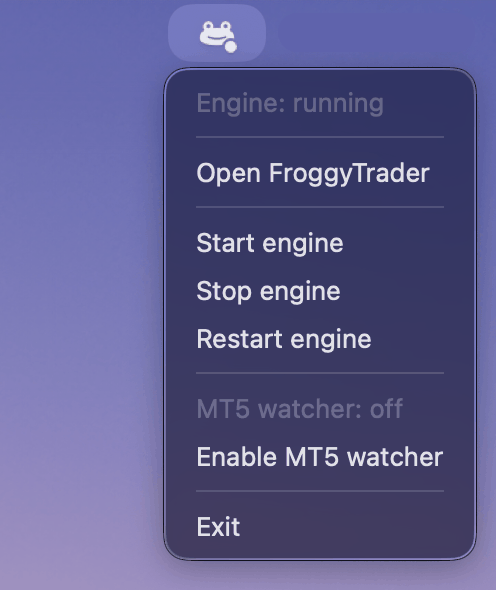
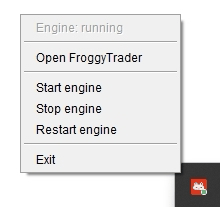
- Icon menu: a status line reading Engine: running, then Open FroggyTrader, Start / Stop / Restart engine and Exit.
- Open FroggyTrader is what opens your dashboard — no address to memorise. It's the same page as the Open dashboard button on the site.
- The engine starts on its own and remembers that: after a reboot, just launch FroggyTrader.
- Closing the browser tab does not stop the bot. Only Exit in the icon menu does.
- The icon sits in the menu bar, top right, monochrome like system icons.
- The icon sits in the notification area, bottom right, in colour — its colour reflects engine state. If you can't see it, click the Show hidden icons arrow.
- Launching the shortcut twice does not create a second FroggyTrader — you get a dialog saying the client is already running.
4
4 min
Copy the advisor into MetaTrader 5
The advisor is a bridge: it hands your broker's candles to the bot and executes the commands that come back. The file is:
It is already compiled — no MetaEditor, no compiling. The file sits in the same archive you installed the client from in step 2, right next to the installer.
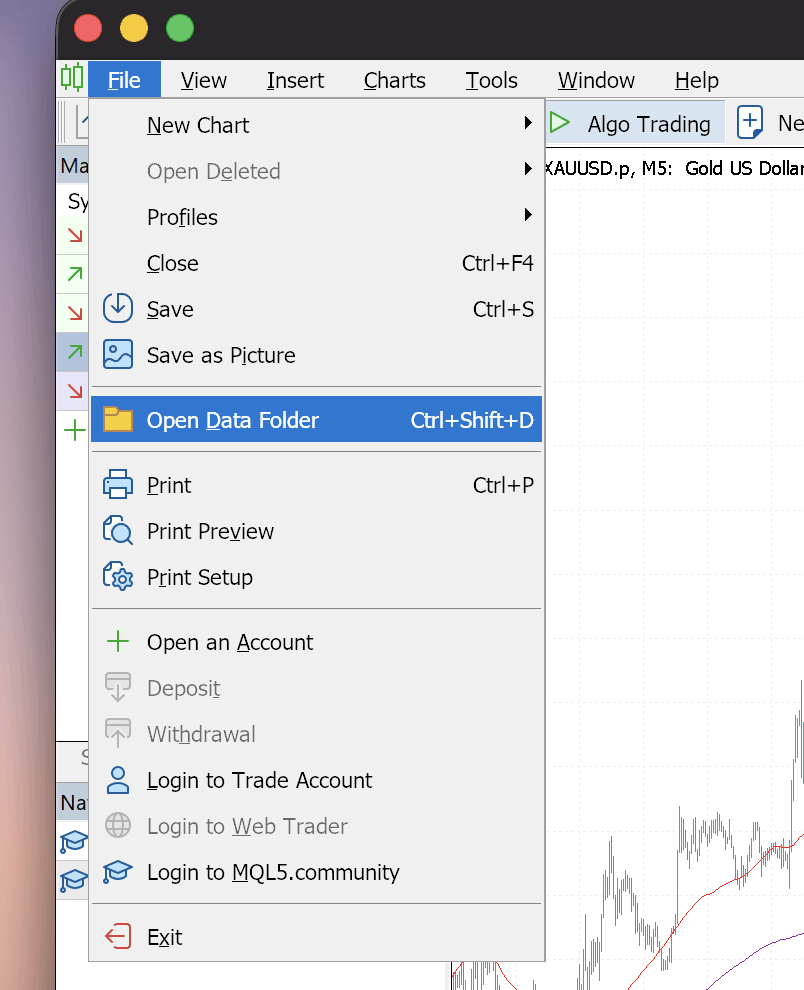
- In MT5: File → Open Data Folder — a normal Explorer window opens.
- Go into
MQL5→Expertsand create aFroggyTraderfolder. - Copy
FroggyTraderProductEA.ex5there. The final path:MQL5\Experts\FroggyTrader\FroggyTraderProductEA.ex5
MT5 on Mac runs in its own Wine layer: File → Open Data Folder opens MT5's built-in file manager rather than Finder, and you cannot drag a file into it from Finder. One command is easier. Open Terminal (Applications → Utilities → Terminal), paste all four lines at once and press Enter:
It creates the FroggyTrader folder, copies the advisor into it and opens it in Finder, so you can see the file arrived.
- If you unpacked the archive somewhere other than Downloads, fix the third line: type
cp, drag the advisor file into the Terminal window — the path fills itself in — then add"$DEST/". - If Terminal answers
No such file or directoryon the very first folder, MetaTrader 5 is installed somewhere else. Check that you installed the official MetaQuotes build for Mac (step 1).
The last bit is the same on both systems: in the Navigator pane, right-click Expert Advisors → Refresh. If it still doesn't show up, restart MT5.
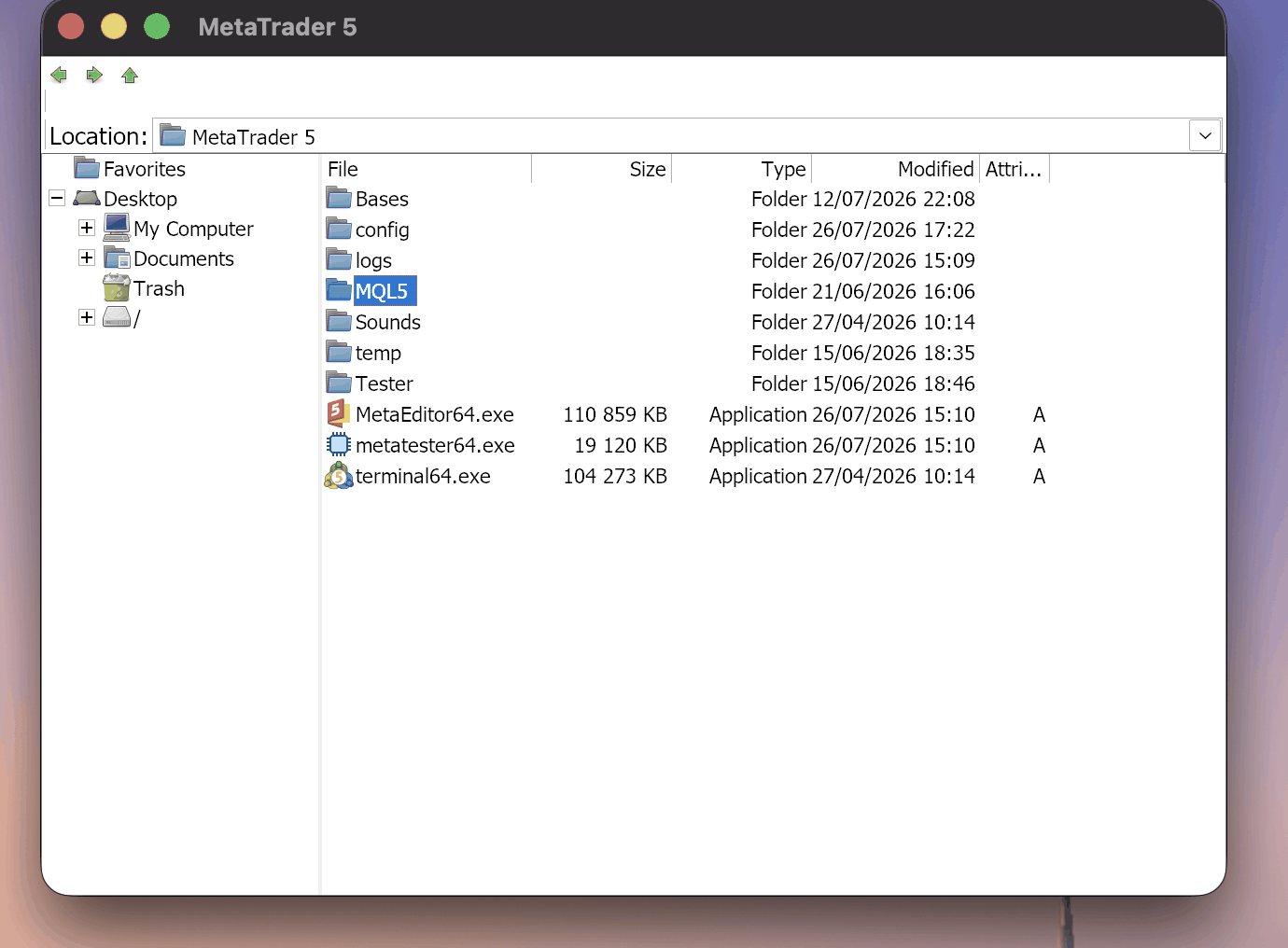
MQL5.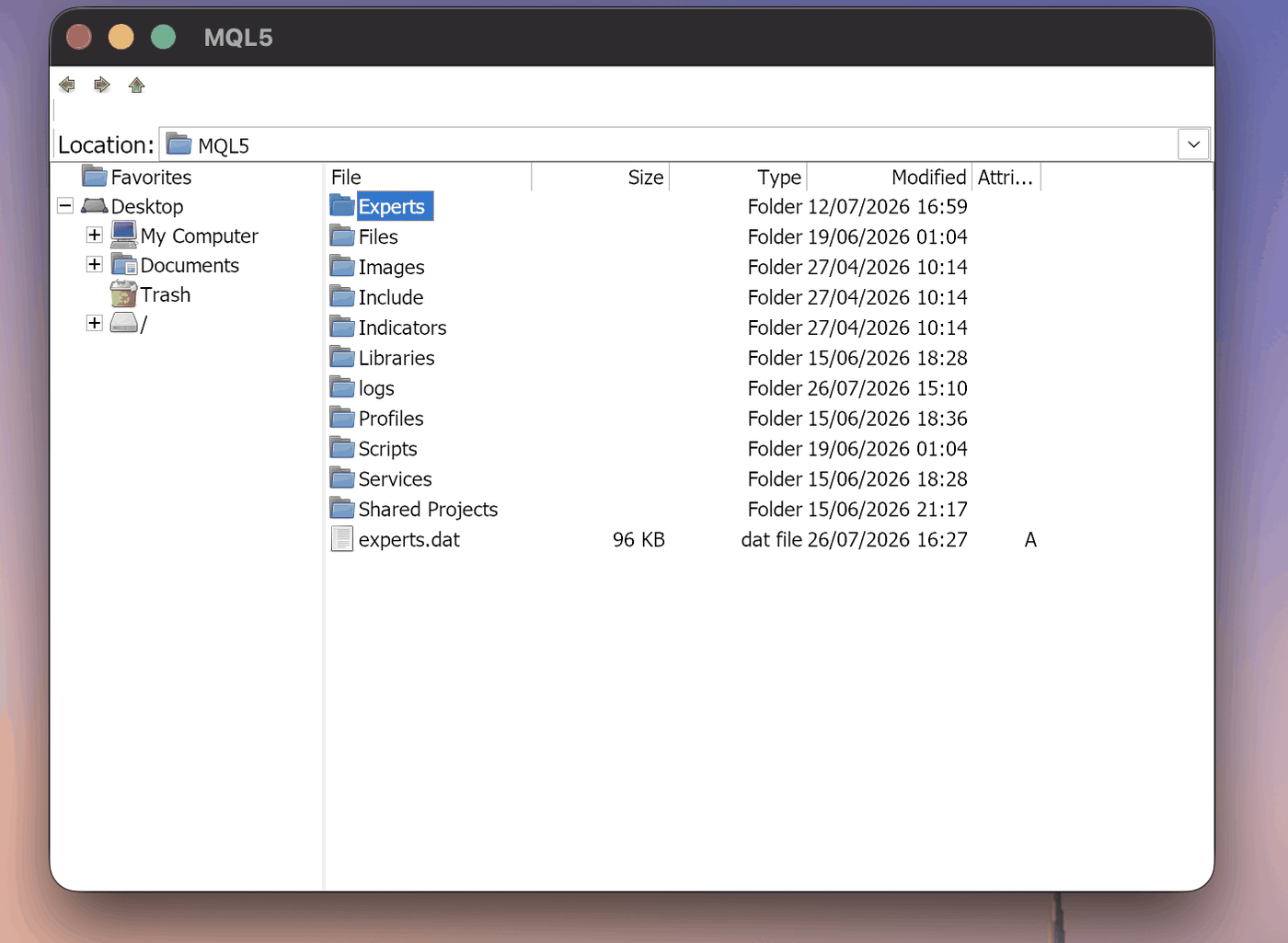
MQL5 you need Experts — that's where FroggyTrader goes. On macOS this window is MT5's built-in file manager.5
1 min
Let the advisor reach the engine
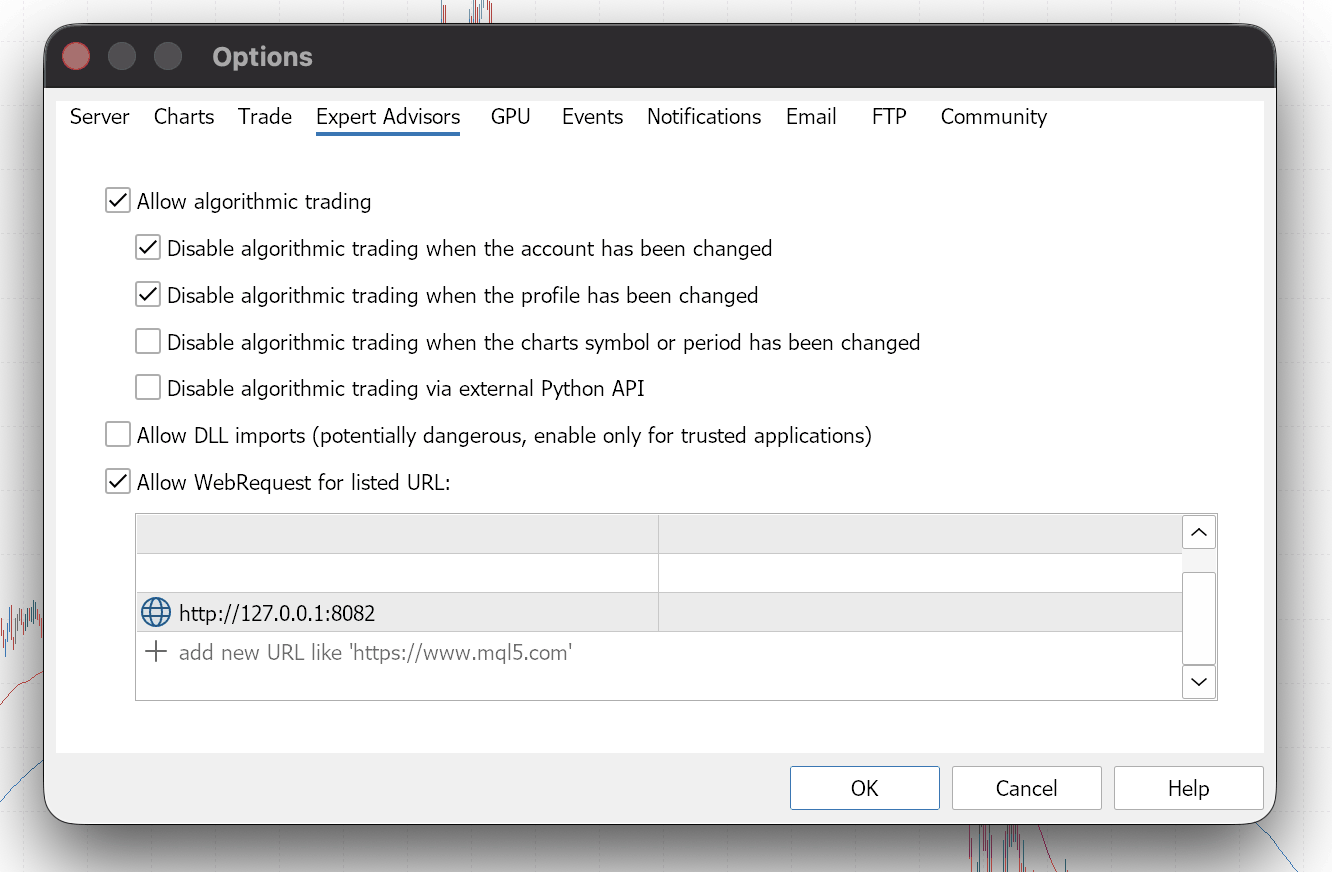
MetaTrader blocks HTTP requests from advisors by default. You need to allow exactly one address, once — the local engine on your own machine.
- Tools → Options → Expert Advisors.
- Tick Allow WebRequest for listed URL.
- Add the engine address exactly as written:
http://127.0.0.1:8082
- OK. This step is identical on macOS and Windows.
6
6 min
Attach the advisor to the gold chart
- Open the gold chart of your account. Brokers name the symbol differently:
XAUUSD,XAUUSD.p,XAUUSDm,GOLD. Use the one your account actually trades — the advisor works with its own chart's symbol. - The chart timeframe doesn't matter — the advisor requests the candles it needs itself (M1, M5, M15, H1, H4). M15 is a comfortable choice: readable and not flickering.
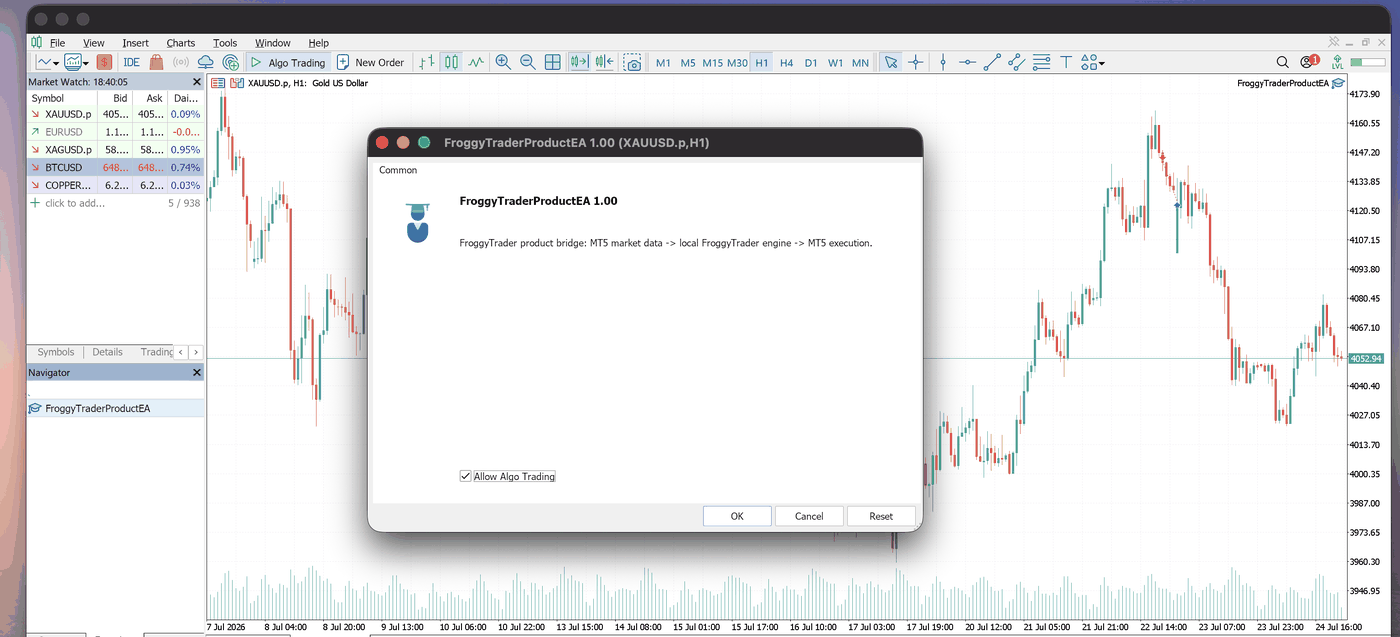
- Drag
FroggyTrader/FroggyTraderProductEAfrom the Navigator onto the chart. - In the advisor dialog tick Allow Algo Trading and press OK. There are no lot or risk inputs — the lot is set in the panel (step 8).
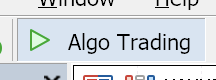
- Turn on the Algo Trading button in the MT5 toolbar. The chart's top-right corner should show a smiling face, not a cross.
- Close any duplicate gold chart that does not have FroggyTrader on it. Keep exactly one advisor instance for the symbol, so after a restart you cannot mistake a plain XAU chart for the bot's chart.
To verify, open the Experts tab at the bottom of the terminal. Healthy lines:
The first two lines appear once, when the advisor starts. The third repeats roughly every 5 minutes — that's your sign the bot is alive. "no entry signal" is normal: the bot waits for its setup and may not enter for days. While the market is closed (weekends) there are no ticks, so no new lines appear — also normal.
Switching the timeframe is fine, switching the symbol is not
Switching the chart makes MetaTrader detach and re-attach the advisor: the Experts tab will show EA stopped and then EA started. Changing the timeframe is safe — same symbol, so every position stays under management.
Changing the symbol on that chart while a position is open is not. The advisor works with its own chart's symbol: switch the chart from gold to another instrument and open gold positions stop being serviced by it. The stop-loss and take-profit stay with the broker, but nothing will manage the trade or close it on signal any more. If you need another instrument, open a separate chart window and leave the advisor's chart alone.
Save the workspace so the advisor returns after a restart
The MT5 watcher can relaunch the terminal after a crash, but it cannot attach an advisor to a chart. The active MT5 profile must already contain the correct chart and FroggyTrader.
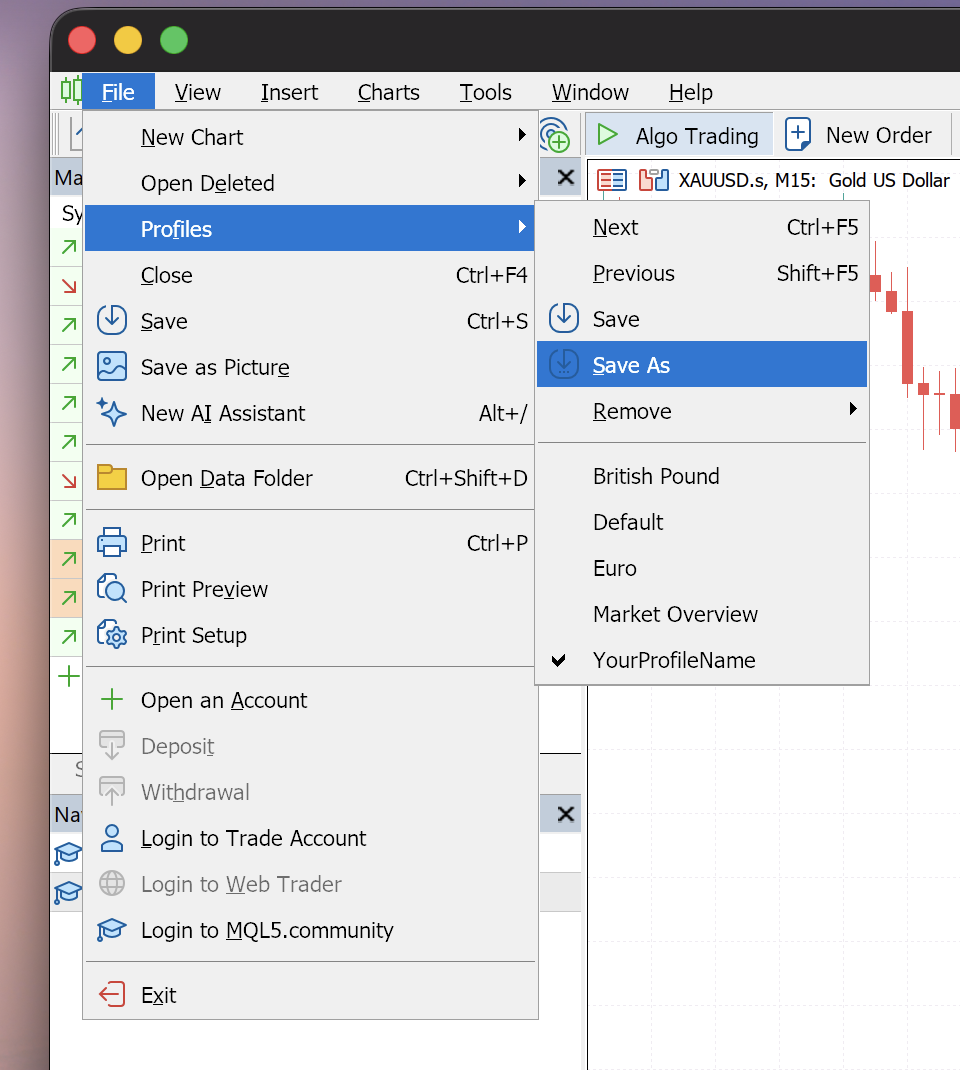
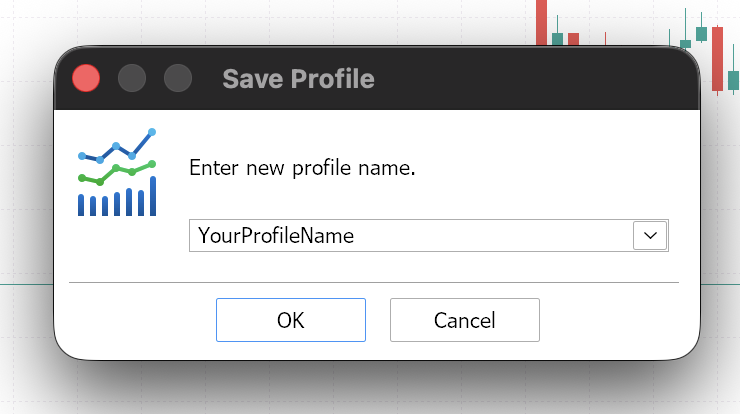
- With the FroggyTrader gold chart active, open File → Profiles → Save As….
- Enter
FroggyTraderas the profile name and press OK. Leave that profile active. - Close MT5 normally once and open it again. Confirm that the gold chart, the advisor and Algo Trading all return, then check for fresh activity in Experts.
What the watcher status means
MT5 watcher: online means the terminal process is being watched. After a recovery, the real confirmation is a fresh FroggyTrader line in the Experts tab.

7
3 min
Set an investor password
The investor password is read-only: it can see the account and its history, but cannot trade, touch positions or withdraw. We ask for it so we can check your account state independently — if a period's profit is ever disputed, for instance. It is stored encrypted, and without it live trading stays off.
The fee itself is calculated from the closed trades the advisor reports — you can see them in the dashboard's "deals" tab, and those are the same numbers that appear on the renewal invoice.
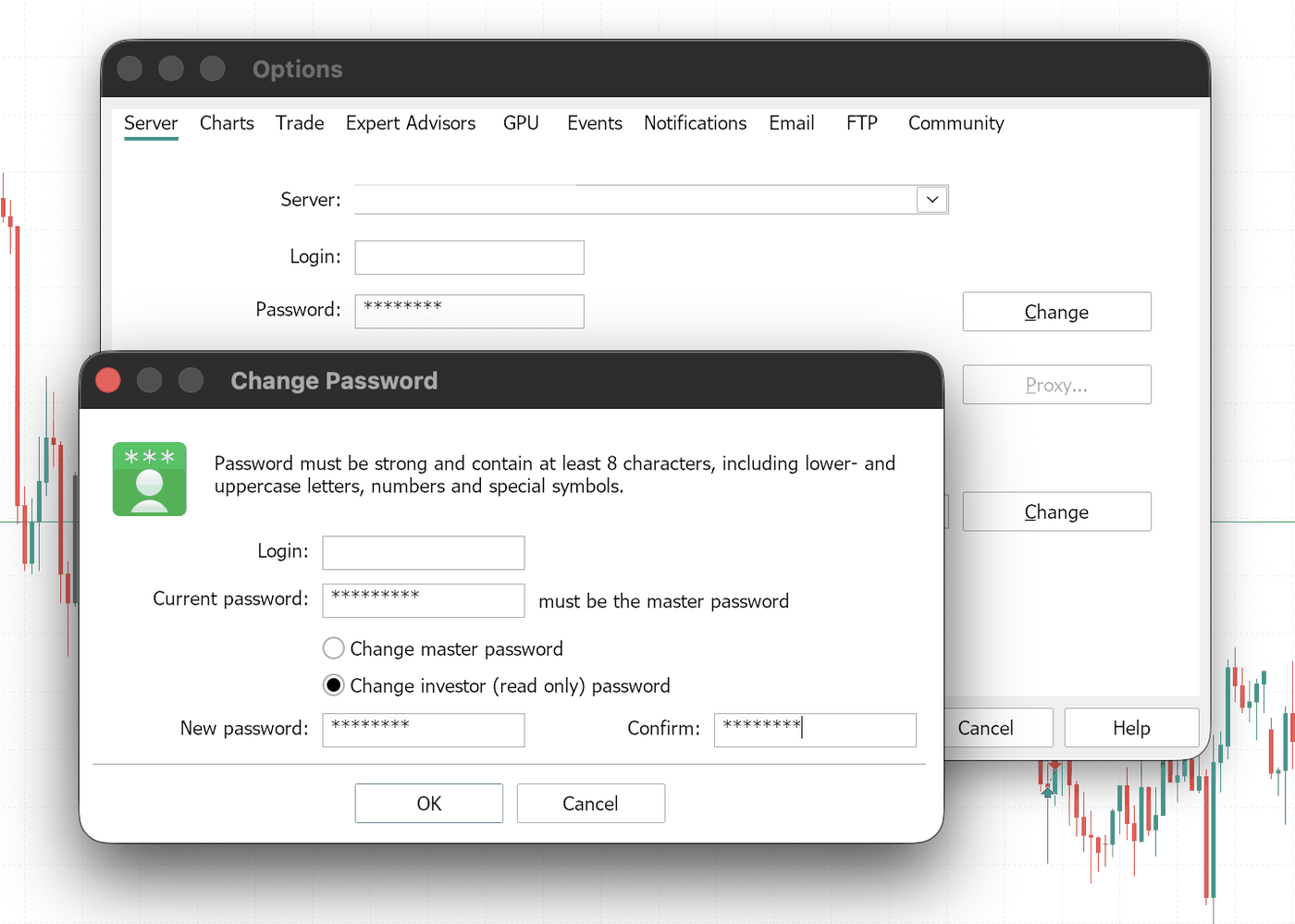
Where to change it: Tools → Options → Server → Password: Change — or right-click the account in the Navigator → Change Password.
In the Change Password dialog, in order:
- "Current password" means your MASTER account password — the one you log into MT5 with, not the investor one. Anything else and the server refuses.
- Switch to "Change investor (read only) password" — the master password is selected by default.
- The new password: at least 8 characters, with lower case, upper case, digits and a special character all present, and different from the master password. While the field is red, the requirements aren't met; once it stops being red you can press OK.
- Check the Journal tab (not Experts) for the line
change of investor password completed
Common journal errors:
| current password error | "Current password" isn't the master account password. |
| password isn't complex enough | The new password lacks complexity — see item 3. |

8
5 min
Link the account and switch XAU/USD on
The last step happens in the panel: FroggyTrader icon → Open FroggyTrader.
- On first open, accept the Terms of Use — trading stays off until you do.
- settings tab: broker server, account number, investor password → save. The panel sends the link to the cloud.
- subscription tab: it should read live account setup: completed ✓ with a trial · N days chip. Your free month is already running.
- instruments tab, the XAU/USD card: set the lot per position and flip the toggle on. The minimum is
0.01.
Check that the bot is really running. cloud: online alone is not enough — it only says the cloud is reachable. All four have to line up:
- at the bottom of the dashboard's left menu: cloud: online and engine: online;
- the MT5 Experts tab keeps producing recent lines: roughly every 5 minutes the advisor writes
FroggyTrader: active, no entry signal(or a trade message). That line is what means "the bot is alive".backend=connectedis printed only when the advisor starts, so its age tells you nothing. There must be no recentbackend unavailableorWebRequest failed; - the subscription tab shows live account setup: completed ✓ and time still left;
- the XAU/USD toggle on the instruments tab is on.
If any one of them is off, the bot won't enter the market. What to do in each case is in "When something doesn't work".
About lot size and risk
The bot can hold up to 5 positions at once on a single instrument — but it doesn't have to: how many there are is up to the market, and often it's one or none. Size your risk off the upper bound: the maximum combined volume is 5 × your lot on XAU/USD. Start at the minimum: you can raise it any time, and the first weeks are best spent watching how the bot enters on your broker. If your broker requires a different volume step, the card warns you and shows both values.
The instrument toggle is not decoration: switch it off and new entries stop immediately, even with the advisor still on the chart. Positions already open are still managed to their exit.
9 · optional
5 min
Enable Telegram notifications
Telegram is configured once in its own card under FroggyTrader settings. There is nothing to enter in the advisor and no Telegram URL to add in MT5. Skip this step if you do not want notifications.
- In Telegram, open @BotFather, run
/newbot, and save the Bot Token. It is a secret — never send it to support or expose it in a screenshot. - Open the new bot's chat and press Start, or send
/start. - Find your Chat ID: open
https://api.telegram.org/bot<YOUR_TOKEN>/getUpdatesin a browser and locate the number in"chat":{"id":...}. Group chat IDs usually begin with a minus sign. - In the FroggyTrader dashboard, open settings. In the separate Telegram notifications card, enable notifications, enter the Bot Token and Chat ID, then press save Telegram.
- Press send test and confirm that your bot delivers the message.
What you will receive
Advisor starts and stops, trading events, and execution errors. On macOS the MT5 watcher also reports a terminal crash, restart attempts, the advisor heartbeat returning, or MT5 coming back without the advisor. The token stays encrypted on this device and is never sent to the cloud.
Three conditions for continuous operation
The bot decides on the candles the advisor brings it. No terminal, or a sleeping computer, means no candles and no entries. This is the number-one reason behind "the bot isn't doing anything".
1. The machine must not fall asleep
- System Settings → Battery (Energy Saver) → Power Adapter → enable "Prevent your Mac from automatically sleeping".
- A laptop with a closed lid still sleeps — keep it open or connect an external display.
- Settings → System → Power & battery → Screen and sleep → set sleep to Never when plugged in.
2. MetaTrader 5 open, algo trading on
- The terminal must be running, the advisor on the chart, and the Algo Trading button pressed.
- FroggyTrader must be running too: icon in the tray, engine in the "running" state.
3. Something watching the terminal
- FroggyTrader watches MetaTrader 5 for you: a check every 30 seconds, and if the terminal has crashed it launches it again. MT5 restores the advisor from the saved FroggyTrader profile created in step 6; the watcher itself does not attach advisors.
- In the icon menu this is the MT5 watcher: online row plus Enable / Disable MT5 watcher; the same status shows at the bottom of the panel's left menu. Your choice is remembered.
- The watcher lives inside FroggyTrader: press Exit and it stops too.
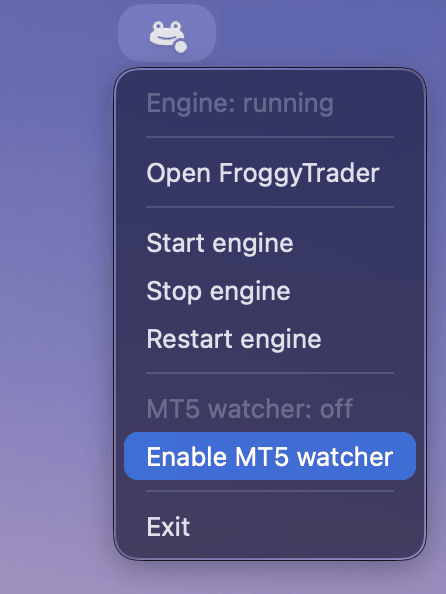
- On Windows MetaTrader 5 runs natively, with no Wine layer, and crashes far less often — so this version ships no watcher, and you won't see an MT5 watcher row in the icon menu or the panel. Nothing is broken and no setting is missing.
- If the machine reboots (Windows updates, for instance), start MetaTrader 5 and FroggyTrader again afterwards.
VPS: untested
Nothing technically stops you from installing MetaTrader 5 and FroggyTrader on a VPS, and for continuous uptime it sounds sensible. But we have not tested that configuration and cannot guarantee it — go that route at your own risk. The tested setup is an ordinary Mac or Windows PC that doesn't sleep.
First month free, then a share of the profit
No subscription, no card on file. The fee is 6.5% of the profit the bot closed over a 30-day period. If the period ends negative, the renewal is free.
- The renewal button appears in the panel 3 days before the current period ends.
- Pick a network: USDT TRC20 or USDT BEP20.
- Scan the QR — it carries the receiving address only, no amount. Copy the amount with its own button and send exactly that: the trailing digits are unique and let the payment be matched automatically. Do not round it.
- Paste the transfer's TxID into the panel. We verify the transaction on-chain and extend your access.
Installed on top, settings preserved
- When a new version ships, the panel shows an "update available" banner. Download the installer from the home page and install it over the current version.
- Your account link, lot size, toggle states and history stay in place — they are stored separately from the program.
- Some updates are mandatory (a changed cloud protocol, for instance): until installed, trading is blocked with "client update required".
- Strategy parameters come from the cloud and update themselves — no reinstall needed for those.
- The MT5 advisor only needs replacing when the release notes say so: copy the new
.ex5over the old one (step 4) and restart MT5.
What the terminal says, and what to do
| Message or symptom | Cause and fix |
|---|---|
| WebRequest failed. error=4006 | The local address isn't allowed. Go back to step 5 and check the list contains exactly http://127.0.0.1:8082. |
| backend unavailable | The engine isn't running. FroggyTrader icon → Start engine; if the state says failed, use Restart. |
| engine unavailable (in the panel) | Same thing: the panel is up, the engine isn't. Start it from the icon menu. |
| trading blocked by license status | No right to trade: the free month ended, the renewal is unpaid, the Terms aren't accepted, or account setup isn't finished. Open the subscription tab — it names the exact reason. |
| trading blocked: real account required | A demo account is connected. The bot only trades a live account. |
| live account setup: not completed | Server, account number or investor password is missing — step 8. If all three are filled in, check that you really did set the investor password in MT5 (step 7). |
| The advisor shows a cross on the chart | Algo trading is off: press Algo Trading in MT5 and allow it in the advisor's properties. |
| The advisor isn't in the Navigator | The file isn't under MQL5/Experts/, or the Navigator wasn't refreshed. Check the path from step 4 and restart MT5. |
| No trades, but everything is green | Normal. The strategy waits for its setup and may not enter for days. |
| The card warns the lot was reduced | Your broker uses a different minimum volume step. The card shows both the requested value and the one that will actually go through. |
| I switched the chart to another symbol and the bot stopped managing a position | The advisor only services its own chart's symbol. Switch the chart back to gold — the advisor will see the open positions again and resume managing them. The broker-side stop-loss and take-profit stay in force the whole time. |
| The bot went quiet overnight / missed a day | Almost always the machine slept or the terminal was closed — see "Keeping the bot from missing trades". |
Can I run it on a VPS?
We haven't tested that, so we don't recommend it: technically the steps are the same (MetaTrader 5 and FroggyTrader on one machine), but VPS operation is unverified and unguaranteed — at your own risk. The tested setup is an ordinary Mac or Windows PC that doesn't sleep.
Do I have to keep the browser open?
No. The panel is a remote control, not the bot. A closed tab changes nothing; trading stops only if you switch the instrument off, stop the engine, or choose Exit in the icon menu.
Why do you need the investor password at all?
So we can look at the account independently of the client program if a period's profit is ever disputed. The fee itself is computed from the closed trades shown in your dashboard. The investor password is read-only: it cannot trade, modify positions or withdraw. We never ask for the master account password.
Can I trade manually on the same account?
Yes. The bot never touches your own trades and they are excluded from the profit share. Keep in mind that manual positions still consume margin on the account.
Why does the system ask me to confirm the first launch?
The macOS build is signed, but macOS can still ask you to confirm opening an app downloaded outside the App Store — click Open. The Windows installer is not signed yet, so SmartScreen may require More info → Run anyway.
What if my broker's gold isn't called XAUUSD?
Not a problem: the advisor uses the symbol of the chart it sits on, and the engine matches the name allowing for broker suffixes. Open your broker's gold chart (XAUUSD.p, XAUUSDm, GOLD) and drop the advisor there. One thing matters: it must be gold — never attach the advisor to another instrument's chart, the strategy is built for XAU/USD.